Sunday, 27 November 2011

rsync from android

1) /root/rsyncpassword should contain rsync password, with each of owner, group and other all denied read/write (chown o-r, o-w, g-w, etc)

2) rsync.conf should set secrets-file for the 'access module' (e.g. ::data in the rsync command below) which contains:

user:password

3) Use tasker to run:
rsync --recursive --update --delete --password-file=/root/rsyncpassword vin@192.168.1.2::data/video/Queue/Podcasts/ /sdcard/media/audio/podcasts/

Monday, 17 October 2011

Open deluge console

deluged runs as user deluge, so to run deluge console with the correct config:

deluge-console -c /srv/deluge/.config/deluge

Wednesday, 13 January 2010

.conkyrc for conky

# .conkyrc - Edited from various examples across the 'net
# Used by Craig Watson [ www.cwatson.org ] on Fedora 8

# --- Window Layout & Options --- #
own_window yes
own_window_colour 2B2739
own_window_transparent no
own_window_type override
own_window_hints undecorated,below,sticky,skip_taskbar,skip_pager
double_buffer yes
use_spacer right
use_xft yes
alignment bottom_right
gap_x 10
gap_y 10

# --- Colours, Sizes, Fonts & Margins --- #
update_interval 2.0
maximum_width 250
stippled_borders 3
border_width 10
default_color grey

# --- Text --- #
draw_outline no
draw_borders no
font Monospace:size=8:weight=bold
uppercase no
draw_shades no

TEXT
${color white}${time %A},${time %e} ${time %B} ${time %G}${alignr}${time %H:%M:%S}
#${color white}${alignr}$color $uptime

#${color orange}CPU ${hr 2}$color$font
Processes: $running_processes/ $processes${alignr}${color white}${freq_g 2}GHz$color
${cpugraph cpu1 25,120 000000 52496B} ${cpugraph cpu2 25,120 000000 52496B}
#${color #ff6600}${cpubar cpu1 3,120} ${color #cc0033}${cpubar cpu2 3,120}$color

#${color white}TOP ${hr 2}$color
${color white}NAME PID CPU MEM$color
1. ${top name 1}${top pid 1} ${top cpu 1} ${top mem 1}
2. ${top name 2}${top pid 2} ${top cpu 2} ${top mem 2}
3. ${top name 3}${top pid 3} ${top cpu 3} ${top mem 3}
4. ${top name 4}${top pid 4} ${top cpu 4} ${top mem 4}
5. ${top name 5}${top pid 5} ${top cpu 5} ${top mem 5}

#${color orange}MEMORY & SWAP ${hr 2}$color
${color white}RAM$color $memperc% ${membar 6}$color
#${color white}Swap$color $swapperc% ${swapbar 6}$color

#${color orange}ETHERNET (${addr eth0}) ${hr 2}$color
${color white}Down:$color ${downspeed eth0}${alignr}${color white}Up:$color ${upspeed eth0}
${downspeedgraph eth0 25,120 000000 52496B} ${alignr}${upspeedgraph eth0 25,120 000000 52496B}$color

Sunday, 10 January 2010

Do not require password in cpufreqselector

From http://linux.aldeby.org/do-not-require-the-password-for-cpu-frequency-scaling-in-ubuntu-karmic-9-10.html

In Ubuntu Karmic 9.10 the frequency scaling GNOME applet always requires a password in order to allow you to change CPU frequency or governor. This is due to policykit profiles enforcing some more strict security.

Helas these profiles are not editable trough the applet in System -> Administration -> Authorisation.

Fortunately, as always in linux this can be achieved by simply editing a text file:

gksudo gedit /usr/share/polkit-1/actions/org.gnome.cpufreqselector.policy

locate the following lines

要調整 CPU 頻率需要權限。  no auth_admin_keep   

and replace the highlighted text

要調整 CPU 頻率需要權限。  no yes   

This change is unfortunately to be applied every time policykit gets updated.

The launchpad bug is #455694

Friday, 1 January 2010

Configuring OnDemand CPU frequency scaling

From here http://linux.digitalsp.com/2009/08/improving-stuttering-during-flash-video.html

Problem:

You have a CPU that supports dynamic frequency scaling and you experience dropping frames or sound stuttering during flash video playback. By default the CPU governor in Ubuntu is set to 'ondemand'. It appears that the ondemand governor does not always scale up as needed.

What is ondemand ?

Ondemand is a dynamic in-kernel CPU frequency governor that can change CPU frequency depending on CPU utilization. It was first introduced in the linux-2.6.9 kernel. Not all hardware support this feature. For Intel CPUs is referred to as SpeedStep and for AMD CPUs it is referred to as Cool'n'Quiet or PowerNow!

Solution:

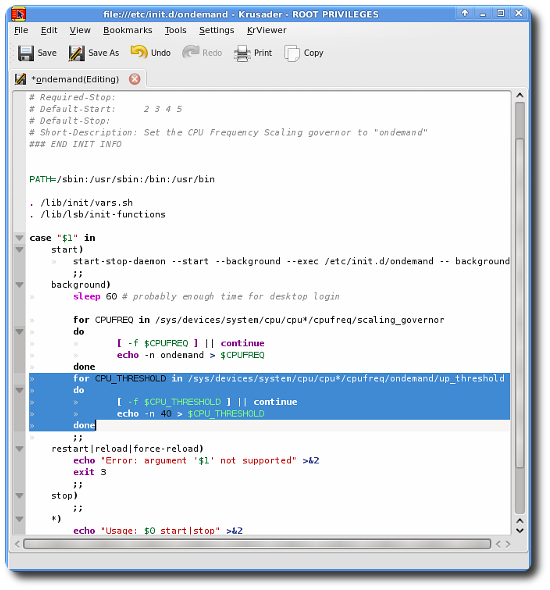
Add the following lines to your /etc/init.d/ondemand configuration file. You can type “sudo gedit /etc/init.d/ondemand” in the terminal to access this file. I changed my file using the root mode of Krusader.
for CPU_THRESHOLD in /sys/devices/system/cpu/cpu*/cpufreq /ondemand/up_threshold
do
[ -f $CPU_THRESHOLD ] || continue
echo -n 40 > $CPU_THRESHOLD
done
This is what my ondemand file looks like after the change:
photo of ondemand configuration file
This will scale your CPU when the processing utilization reaches 40%. You can experiment with different values here. Reboot after making these changes and you can verify that your CPU supports this feature by checking the output from the command line with the dmesgcommand. You should NOT see the following message:
ondemand governor failed, too long transition latency of HW, fallback to performance governor

This should provide an improvement for all applications (not just Firefox, Opera) that needs that extra kick to work smoothly.

Thursday, 31 December 2009

Fix for: Kernel panic - not syncing:VFS: Unable to mount root fs on unknown

Fixed by following this from http://ubuntuforums.org/archive/index.php/t-620860.html

The "why" is fairly easy, the fix is a bit lengthy. The short answer is that the initrd image was not updated or was updated with an incorrect disk setting. This can turn into a very long and detailed set of steps. So I will outline what is needed, and then have you boot from the install cdrom to fix it. If some of the steps in the outline indicate that a file setting is wrong, I will leave it up to you on how to edit the file to fix it :-). So first an explanation on the steps, then figure out how to get you access to disk to fix it.

The initrd image is located in '/boot' and looks like the line below, the numbers after the key words "initrd.img-xxxxxxxx" will be dependent on what kernel you have installed. There can be more than one of these initrd.img files.


Example - initrd.img file

/boot/initrd.img-2.6.22-14-generic


Quick Summary

In your case, since grub is loading, and it's loading the kernel, it means that your Grub install is ok. You did not mention it, but I assume that since Grub is the boot loader, that you also use it to boot to Windows. From the error message that you provided, it appears that Windows is on the first partition, however Ubuntu is on either the second or third partition. Since you have booted into Windows using Grub, it's also confirmation that Grub is working properly and the issue is likely the initrd.img.

A Quick Grub Review

Grub creates it's own internal mapping of disk drives. The format is like this:

hd( 0, 0 )

The first parameter is the disk drive.
The second parameter is the disk partition.

All numbering starts at zero [0]. So the first disk drive is [0], the second one is [1] and so forth. The same applies to partitions, the first partition is [0], the second partition is [1].

In your error message, the last line indicates that the kernel is looking on disk 1, partition 1 for the Ubuntu installation. "unknown-block(0,0)"

[6.543860] Kernel panic - not syncing: VFS: Unable to mount root fs on unknown-block(0,0)

How To Fix It

There are two items that need to be checked: 1) the disk that grub is going to boot from, and 2) the partition that it is to use to load Ubuntu. In your case the first item is correct because windows boots, it's the second one that is wrong, and it's can be wrong in one or two places.

Verify that the Grub device mapping is correct. This requires access to the partition where '/boot' exists. The file is called /boot/grub/device.map, it's a plain text file that will have one or more lines telling grub what disks is suppose to know about.

/boot/grub/device.map

For SATA or SCSI it will look like this:

(hd0) /dev/sda

For IDE

(hd0) /dev/hda


There are two locations for the partition that is to be used, one is in the Grub menu, and the other one is in the initrd.img file.

Here is an example of the Grub Menu file: /boot/grub/menu.lst

You are interested in the lines that look like this:

title Ubuntu 7.10, kernel 2.6.22-14-generic
root (hd0,1)
kernel /vmlinuz-2.6.22-14-generic root=/dev/md1 ro
initrd /initrd.img-2.6.22-14-generic

title Ubuntu 7.10, kernel 2.6.22-14-generic (recovery mode)
root (hd0,1)
kernel /vmlinuz-2.6.22-14-generic root=/dev/md1 ro single
initrd /initrd.img-2.6.22-14-generic

Your Windows entry will be located at the bottom of the file and will look like this:

# This entry automatically added by the Debian installer for a non-linux OS
# on /dev/hda1
title Windows NT/2000/XP
root (hd0,0)
savedefault
makeactive
chainloader +1

The above example is from a system that is using RAID1, so the 'root' is a bit different from yours. Make sure your 'root' points to the correct partition for your Ubuntu installation.

If your Ubuntu installation is on partition 2, then the root will be '(hd0,1)', if your Ubuntu installation is on partition 3, then the root will be '(hd0,2). It's repeated here:

If root is on the second partition, then 'root hd(0,1)'
If root is on the third partition, then 'root hd(0,2)'

The second location for the partition is in the initrd.img file. It's just safer to rebuild it then to try to mess with it.

update-initramfs -c -k 2.6.22-14-generic
update-initramfs: Generating /boot/initrd.img-2.6.22-14-generic

It's likely that you are doing this from a cdrom boot, so make sure you specify the kernel name. Do not try something like update-initramfs -c -k `uname -r`, it will just fail and mess up your image.

---

Okay, so now how to access the disk? Fastest way is to boot with the install cdrom and let it come up in the Ubuntu GUI.

Note: Most of the following section was from here, because was I too lazy to type it all in in: https://help.ubuntu.com/community/RecoveringUbuntuAfterInstallingWindows

---
Select Applications>Accessories>Terminal.

Become root

sudo -i

Now that you have root access, you need to mount the partition(s) containing your bootloader files.

You will need access to both your /sbin/ and /boot/ directories. If you have a /boot/ listing in your fstab, you will need to mount two partitions. In your case this is unlikely because you said you had three partitions, so everything is located on either /dev/hda2 or /dev/hda3. I am assuming that /dev/hda2 is your Ubuntu location, if it is not, just replace the '2' with it's correct location.

Create a mount point

mkdir /mnt/work

If you need to mount /boot/, too, run the following command. Again I think all of your data is located on a one partition based on the information you provided, so this step is not needed ... however just to keep Mr Murphy away...

mkdir /mnt/work/boot

Now it's time to actually load your filesystem data. Review your fstab and identify the location(s) of / and /boot/; these will likely look something like /dev/hda2 and /dev/hda3, though the letter 'a' and the numbers 2 and 3 may differ.

Enter the following commands to load your filesystem and some information GRUB may need.

mount /dev/hda2 /mnt/work
mount -o bind /dev /mnt/work/dev
mount -o bind /proc /mnt/work/proc
cp /proc/mounts /mnt/work/etc/mtab

Now, you have to enter your working environment. The following command will take care of that.

chroot /mnt/work/ /bin/bash

If all of the assumptions I made are correct about your system, and the grub menu.lst file has the correct root (hd0,1) entry, all you need to do is run the update command.

update-initramfs -c -k 2.6.22-14-generic

Now exit the chroot environment and reboot

exit << exit chroot
reboot

Hopefully this will fix your problem, if not, then post your device.map and menu.lst files and we can figure out what is going on.

Tuesday, 15 December 2009

list sort with delegate

myList.Sort(new Comparison(
delegate(MyClass a, MyClass b)
{
if (a.number <>
else if (a.number > b.number) return 1;
else return 0;
}
));