Monday, 11 July 2016

Network scanner configuration

Taken from here

Get the required packages:
sudo su
aptitude update
aptitude install xinetd sane-utils
xinetd is the Internet superdaemon which will start saned, the “Scanner Easy Access Now” daemon when a network connection to it’s port is opened (saned can’t do that on it’s own).
sane-utils contains the saned. (On Archlinux the package is called simply “sane”)
Raspbian automatically sets up the group saned and the user saned for you. It also adds the user saned to the group scanner.
Configure /etc/default/saned so it will start automatically (RUN=yes):
# Defaults for the saned initscript, from sane-utils

# Set to yes to start saned
RUN=yes

# Set to the user saned should run as
RUN_AS_USER=saned
Start saned, and test whether the scanner is recognized. Ideally you should do this as user saned, to see if all access rights for saned are setup correctly. Your scanner should naturally be attached to the Raspberry Pi. If it draws its power through USB, we recommend to use a powered USB hub.
root@raspberrypi:/home/pi# /etc/init.d/saned start

root@raspberrypi:/home/pi# su -s /bin/sh - saned
No directory, logging in with HOME=/

$ lsusb
Bus 001 Device 002: ID 0424:9512 Standard Microsystems Corp.
Bus 001 Device 001: ID 1d6b:0002 Linux Foundation 2.0 root hub
Bus 001 Device 003: ID 0424:ec00 Standard Microsystems Corp.
Bus 001 Device 004: ID 05e3:0608 Genesys Logic, Inc. USB-2.0 4-Port HUB
Bus 001 Device 008: ID 04a9:220e Canon, Inc. CanoScan N1240U/LiDE 30
Bus 001 Device 007: ID 093a:2510 Pixart Imaging, Inc. Optical Mouse
Bus 001 Device 006: ID 046d:c31c Logitech, Inc. Keyboard K120 for Business

$ scanimage -L
device `plustek:libusb:001:008' is a Canon CanoScan N1240U/LiDE30 flatbed scanner

$ exit

root@raspberrypi:/home/pi#
I have included the # and $ prompt in this listing, so you can distinguish between commands the root user (#) issues and the saned user issues ($)
If you see your scanner here, great. If not – have a look at the documentation and further reading links we will provide at the end of this article.
The USB scanner itself is plug & play – you can attach it to the Raspberry Pi when you feel like scanning, and remove it after you have finished.
Prepare network sharing of the scanner
root@raspberrypi:/etc/xinetd.d# cat /etc/services | grep sane
sane-port       6566/tcp        sane saned      # SANE network scanner daemon
You should see the sane-port line as in the listing. If it is not in there, add it.
root@raspberrypi:/# cd /etc/xinetd.d

root@raspberrypi:/etc/xinetd.d# touch sane-daemon

root@raspberrypi:/etc/xinetd.d# which saned
/usr/sbin/saned

root@raspberrypi:/etc/xinetd.d# nano sane-daemon
This will set up the XInet configuration. Please use the following configuration for the /etc/xinetd.d/sane-daemon file:
service sane-port
            {
              socket_type = stream
              server = /usr/sbin/saned
              protocol = tcp
              user = saned
              group = saned
              wait = no
              disable = no
            }
Note that we used the output from “which saned” in the configuration above. If it is different for you – e.g. on Archlinux – adjust accordingly.
Set up saned to accept connections from your network by editing /etc/sane.d/saned.conf:
# saned.conf
# Configuration for the saned daemon

## Daemon options
# [...]
# data_portrange = 10000 - 10100


## Access list
# [...]
# The hostname matching is not case-sensitive.

#scan-client.somedomain.firm
192.168.1.0/24

#192.168.0.1
#192.168.0.1/29
#[2001:7a8:185e::42:12]
#[2001:7a8:185e::42:12]/64

# [...]

Please adjust the subnet specification 192.168.1.0/24 to your network architecture. You can also explicitly specify single IPs. If you do not edit this file, SaneTwain will hang when contacting your Raspberry Pi scanner server.
Setting up Linux to scan from the network scanner
If you have a Linux box, you can use basically any SANE Frontend to scan using the network.
You need to add the network scanner to a local SANE installation.
Edit /etc/sane.d/net.conf and add the IP of your server. You can specify multiple servers.
image
Test with scanimage –L once again, and after a while you will see your network scanner showing up.

Monday, 8 February 2016

Start ices2 and remote mplayer in one command


To run ices2 on SOURCE_SERVER, and start up mplayer on TARGET_SERVER, and then shutdown ices2 after quitting the remote mplayer, in one command:

ices2 ~/ices-pulse.xml & ssh -t USER@TARGET_SERVER 'mplayer -cache 512 -cache-min 49 http://SOURCE_SERVER:8000/live.ogg' && killall ices2

Monday, 29 June 2015

Left Handed Configuration for Logitech Marble Mouse on Ubuntu

This comes from https://wiki.archlinux.org/index.php/Logitech_Marble_Mouse

Append the following to /usr/share/X11/xorg.conf.d/10-evdev.conf (and then restart X)

#       - - - Logitech Marble Mouse Settings - - -
#
#       The Logitech Marble Mouse buttons are mapped [A-D] from left to right:
#       A (large); B (small) |  C (small); D (large).
#
#       Preferred options for right-handed usage:
#       A = normal click [1]
#       B = middle-click [2]
#       C = middle-click [2]
#       D = right-click [3]
#       Hold button B while rolling trackball to emulate wheel-scrolling.
#
#       Preferred options for left-handed usage:
#       A = right-click [3]
#       B = middle-click [2]
#       C = middle-click [2]
#       D = normal click [1]
#       Hold button C while rolling trackball to emulate wheel-scrolling.
#       Pressing both large buttons simultaneously (b) produces a "back" action.

Section "InputClass"
        Identifier  "Marble Mouse"
        MatchProduct "Logitech USB Trackball"
        MatchIsPointer "on"
        MatchDevicePath "/dev/input/event*"
        Driver "evdev"

#       Physical button #s:     A b D - - - - B C  
#       Option "ButtonMapping" "1 8 3 4 5 6 7 2 2"   right-hand placement
#       Option "ButtonMapping" "3 8 1 4 5 6 7 2 2"   left-hand placement
#       b = A & D
        Option "ButtonMapping" "3 8 1 4 5 6 7 2 2"

#       EmulateWheel: Use Marble Mouse trackball as mouse wheel
#       Factory Default: 8; Use 9 for right side small button
        Option "EmulateWheel" "true"
        Option "EmulateWheelButton" "9"

#       EmulateWheelInertia: How far (in pixels) the pointer must move to
#       generate button press/release events in wheel emulation mode.
#       Factory Default: 50
        Option "EmulateWheelInertia" "10"

#       Axis Mapping: Enable vertical [ZAxis] and horizontal [XAxis] scrolling
        Option "ZAxisMapping" "4 5"
        Option "XAxisMapping" "6 7"

#       Emulate3Buttons: Required to interpret simultaneous press of two large
#       buttons, A & D, as a seperate command, b.
#       Factory Default: true
        Option "Emulate3Buttons" "true"
EndSection

Saturday, 28 February 2015

HiFiBerry, OpenELEC and Raspberry Pi 2

Apart from the last step, these instructions come from HiFiBerry.com here.

Create this file: .config/modules-load.d/hifiberry.conf
And make its contents:
snd_soc_bcm2708_i2s
bcm2708_dmaengine
snd_soc_hifiberry_dacplus

Create or edit this file: /storage/.xbmc/userdata/advancedsettings.xml
And make it include this:
<advancedsettings> <video> <defaultplayer>dvdplayer</defaultplayer> <defaultdvdplayer>dvdplayer</defaultdvdplayer> </video> </advancedsettings>

Create this file: /storage/.config/modprobe.d/disable-lirc.conf
And make its contents:
blacklist lirc_rpi

Now a change that isn't in the hifiberry.com instructions. You need to edit the /boot/config.txt file. To do this the RPi needs to be shutdown, pull the SD card out and mount it on another computer. Add to the end of config.txt the following:
dtoverlay=hifiberry-dacplus

Save the file, start up OpenELEC and select HiFiBerry in OpenELEC's audio settings.

Sunday, 7 September 2014

2 steps for passwordless SSH login

1. Open terminal and run: ssh-keygen
2. Then: ssh-copy-id remote-user@remote-hostname

If you want to give root ssh access to the remote system (e.g. for rsnapshot) then just run 'sudo su' before those two commands.

Thursday, 7 August 2014

RDP rdesktop command

rdesktop -u username -d domain -p password -f -a 24 servername

Tuesday, 22 July 2014

Fix for rsnapshot not running through cron on raspbian

Edit crontab with:

sudo crontab -e

And then in the crontab text file, before the scheduled tasks are defined add:

MAILTO=""

Monday, 10 March 2014

compton config for i3

in ~/.i3/config add this to start compton as daemon

exec compton -CGb

and in ~/.config/compton.conf

backend = "glx"
glx-no-stencil = true
#glx-copy-from-front = false
glx-no-rebind-pixmap = true
glx-swap-method = "exchange"
refresh-rate = 0
vsync = "opengl-swc"
dbe = false
paint-on-overlay = true
sw-opti = false
##unredir-if-possible = true

Saturday, 1 March 2014

Workaround huge xbmc log files about "caesinkalsa"

XBMC log files with lots of entries about "caesinkalsa", to workaround:

1) Create advancedsettings.xml in /home//.xbmc/userdata
2) Disable logging by setting log level to -1 in advancedsettings.xml. See http://wiki.xbmc.org/index.php?title=Log_file/Advanced

Sunday, 20 October 2013

PulseAudio changes in order to have synchronous output on HDMI and SPDIF

In /etc/pulse/default.pa

1) Comment out line that loads module module-udev-detect.so

2) General idea is to use module-combine-sink. hw:0,1 and hw:0,3 might need changing depending on hardware, but otherwise add:

load-module module-alsa-sink device=hw:0,1 sink_name=optical_output
load-module module-alsa-sink device=hw:0,3 sink_name=hdmi_output
load-module module-combine-sink sink_name=hdmiandoptical slaves=hdmi_output,optical_output
set-default-sink hdmiandoptical

Tuesday, 28 May 2013

#! SSD tweaks

In /etc/fstab set noatime,discard

Also add the line:
tmpfs /tmp tmpfs defaults,noatime,mode=1777 0 0 

to move /tmp to RAM

Change Scheduler to deadline. This is done through grub, read up on elevator=deadline.

Can also move the web browser cache to RAM. Search for firefox config key:
browser.cache.disk.parent_directory
 
http://crunchbang.org/forums/viewtopic.php?id=13129 

Wednesday, 17 April 2013

run a script when a device is mounted

  1. Make sure udev-automount is installed
    pacman -Sy udev-automount
  2. Work out udev rules with udevadm (see Arch Wiki - udev)
    udevadm info -a -n /dev/sdc
  3. Create a udev rule file based on step 2, e.g. /etc/udev/rules.d/81-sdcard-sync.rules, with contents like this:
    KERNEL=="sd?1", ATTRS{idVendor}=="0781", ATTRS{idProduct}=="a7a8", ATTRS{serial}=="6333011111B1", RUN+="/usr/bin/sd-card-sync-start.py"

Sunday, 10 March 2013

Restore screen brightness on start-up

For HP Pavilion g6 with intel graphics, change /etc/rc.local to


#!/bin/sh -e
#
# rc.local
#
# This script is executed at the end of each multiuser runlevel.
# Make sure that the script will "exit 0" on success or any other
# value on error.
#
# In order to enable or disable this script just change the execution
# bits.
#
# By default this script does nothing.

echo 976 > /sys/class/backlight/intel_backlight/brightness
exit 0

Wednesday, 6 March 2013

mount samba share

sudo mount -t cifs //192.168.1.1/data_ro /media/network -o user=bob

Monday, 22 October 2012

devmon to automount usb

automount usb drives

devmon &

Sunday, 27 November 2011

rsync from android

1) /root/rsyncpassword should contain rsync password, with each of owner, group and other all denied read/write (chown o-r, o-w, g-w, etc)

2) rsync.conf should set secrets-file for the 'access module' (e.g. ::data in the rsync command below) which contains:

user:password

3) Use tasker to run:
rsync --recursive --update --delete --password-file=/root/rsyncpassword vin@192.168.1.2::data/video/Queue/Podcasts/ /sdcard/media/audio/podcasts/

Monday, 17 October 2011

Open deluge console

deluged runs as user deluge, so to run deluge console with the correct config:

deluge-console -c /srv/deluge/.config/deluge

Wednesday, 13 January 2010

.conkyrc for conky

# .conkyrc - Edited from various examples across the 'net
# Used by Craig Watson [ www.cwatson.org ] on Fedora 8

# --- Window Layout & Options --- #
own_window yes
own_window_colour 2B2739
own_window_transparent no
own_window_type override
own_window_hints undecorated,below,sticky,skip_taskbar,skip_pager
double_buffer yes
use_spacer right
use_xft yes
alignment bottom_right
gap_x 10
gap_y 10

# --- Colours, Sizes, Fonts & Margins --- #
update_interval 2.0
maximum_width 250
stippled_borders 3
border_width 10
default_color grey

# --- Text --- #
draw_outline no
draw_borders no
font Monospace:size=8:weight=bold
uppercase no
draw_shades no

TEXT
${color white}${time %A},${time %e} ${time %B} ${time %G}${alignr}${time %H:%M:%S}
#${color white}${alignr}$color $uptime

#${color orange}CPU ${hr 2}$color$font
Processes: $running_processes/ $processes${alignr}${color white}${freq_g 2}GHz$color
${cpugraph cpu1 25,120 000000 52496B} ${cpugraph cpu2 25,120 000000 52496B}
#${color #ff6600}${cpubar cpu1 3,120} ${color #cc0033}${cpubar cpu2 3,120}$color

#${color white}TOP ${hr 2}$color
${color white}NAME PID CPU MEM$color
1. ${top name 1}${top pid 1} ${top cpu 1} ${top mem 1}
2. ${top name 2}${top pid 2} ${top cpu 2} ${top mem 2}
3. ${top name 3}${top pid 3} ${top cpu 3} ${top mem 3}
4. ${top name 4}${top pid 4} ${top cpu 4} ${top mem 4}
5. ${top name 5}${top pid 5} ${top cpu 5} ${top mem 5}

#${color orange}MEMORY & SWAP ${hr 2}$color
${color white}RAM$color $memperc% ${membar 6}$color
#${color white}Swap$color $swapperc% ${swapbar 6}$color

#${color orange}ETHERNET (${addr eth0}) ${hr 2}$color
${color white}Down:$color ${downspeed eth0}${alignr}${color white}Up:$color ${upspeed eth0}
${downspeedgraph eth0 25,120 000000 52496B} ${alignr}${upspeedgraph eth0 25,120 000000 52496B}$color

Sunday, 10 January 2010

Do not require password in cpufreqselector

From http://linux.aldeby.org/do-not-require-the-password-for-cpu-frequency-scaling-in-ubuntu-karmic-9-10.html

In Ubuntu Karmic 9.10 the frequency scaling GNOME applet always requires a password in order to allow you to change CPU frequency or governor. This is due to policykit profiles enforcing some more strict security.

Helas these profiles are not editable trough the applet in System -> Administration -> Authorisation.

Fortunately, as always in linux this can be achieved by simply editing a text file:

gksudo gedit /usr/share/polkit-1/actions/org.gnome.cpufreqselector.policy

locate the following lines

要調整 CPU 頻率需要權限。  no auth_admin_keep   

and replace the highlighted text

要調整 CPU 頻率需要權限。  no yes   

This change is unfortunately to be applied every time policykit gets updated.

The launchpad bug is #455694

Friday, 1 January 2010

Configuring OnDemand CPU frequency scaling

From here http://linux.digitalsp.com/2009/08/improving-stuttering-during-flash-video.html

Problem:

You have a CPU that supports dynamic frequency scaling and you experience dropping frames or sound stuttering during flash video playback. By default the CPU governor in Ubuntu is set to 'ondemand'. It appears that the ondemand governor does not always scale up as needed.

What is ondemand ?

Ondemand is a dynamic in-kernel CPU frequency governor that can change CPU frequency depending on CPU utilization. It was first introduced in the linux-2.6.9 kernel. Not all hardware support this feature. For Intel CPUs is referred to as SpeedStep and for AMD CPUs it is referred to as Cool'n'Quiet or PowerNow!

Solution:

Add the following lines to your /etc/init.d/ondemand configuration file. You can type “sudo gedit /etc/init.d/ondemand” in the terminal to access this file. I changed my file using the root mode of Krusader.
for CPU_THRESHOLD in /sys/devices/system/cpu/cpu*/cpufreq /ondemand/up_threshold
do
[ -f $CPU_THRESHOLD ] || continue
echo -n 40 > $CPU_THRESHOLD
done
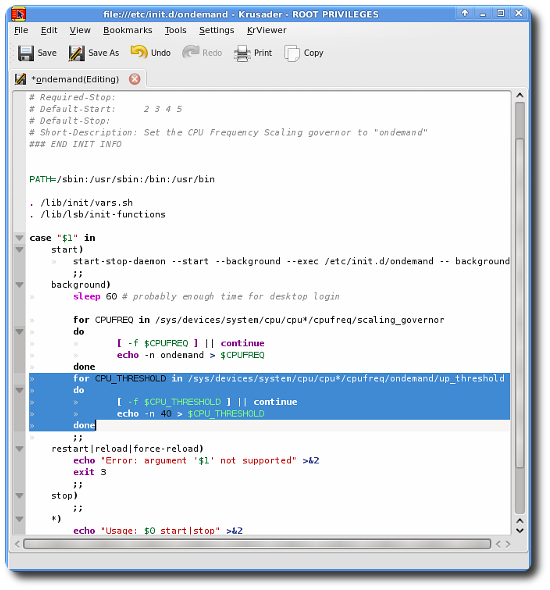
This is what my ondemand file looks like after the change:
photo of ondemand configuration file
This will scale your CPU when the processing utilization reaches 40%. You can experiment with different values here. Reboot after making these changes and you can verify that your CPU supports this feature by checking the output from the command line with the dmesgcommand. You should NOT see the following message:
ondemand governor failed, too long transition latency of HW, fallback to performance governor

This should provide an improvement for all applications (not just Firefox, Opera) that needs that extra kick to work smoothly.